Figma to Webflow Plugin (HTML, CSS) | Design System Sync 2024
Sync Your Designs Effortlessly The Ultimate Guide to Figma to Webflow Integration.

Shaheer Malik
Framer Designer & Developer
Quick answer
The Figma to Webflow plugin exports frames built with auto layout into Webflow as real HTML and CSS structure rather than absolute-positioned boxes. It saves the most time on layout and styles. It does not replace judgement about class naming, responsive behaviour or interactions — expect to clean up structure on the Webflow side.
In today's fast-paced web design or web development environment, efficiency and innovation are key. The Figma to Webflow plugin is a groundbreaking tool that allows designers to streamline their workflow and enhance productivity. This article will explore the ins and outs of this plugin, its benefits, and how to effectively utilize it to sync your designs seamlessly to Webflow from Figma.
You can add content using premade flexbox and prebuilt layouts with auto layout frames. Bring your designs to life.
What is the Figma to Webflow Plugin?
The Figma to Webflow plugin is an innovative tool developed by Webflow Labs that facilitates the seamless transfer of designs from Figma to Webflow. This plugin translates Figma layers into their HTML and CSS equivalents, making the transition from design to development smoother and more efficient.
Key Features:
Auto layout support
Typography, border, and shadow styles
Background images and gradients
Vector and shape conversion to SVGs
Images and opacity adjustments
Absolute positioning
The plugin essentially bridges the gap between design and code, allowing designers to focus on creativity while ensuring their designs are accurately implemented in Webflow.
Complete information is available at webflow university.
Why Use the Figma to Webflow Plugin?
Using the Figma to Webflow plugin offers numerous benefits for designers and developers alike. It streamlines the workflow, reduces the need for manual coding, and ensures design consistency.
Benefits:
Efficiency: Quickly transfer designs from figma without rebuilding them in Webflow.
Consistency: Maintain design integrity with precise translations of Figma layers.
Collaboration: Enhance teamwork by allowing seamless sharing of designs and prototypes.
With this plugin, you can convert your Figma designs into fully functional Webflow websites, saving time and effort while maintaining high-quality design standards.
How to Install and Authorize the Plugin
Installing and authorizing the Figma to Webflow plugin is a straightforward process. Follow these steps to get started:
Create a Figma Account: Ensure you have an active Figma account.
Install the Plugin:
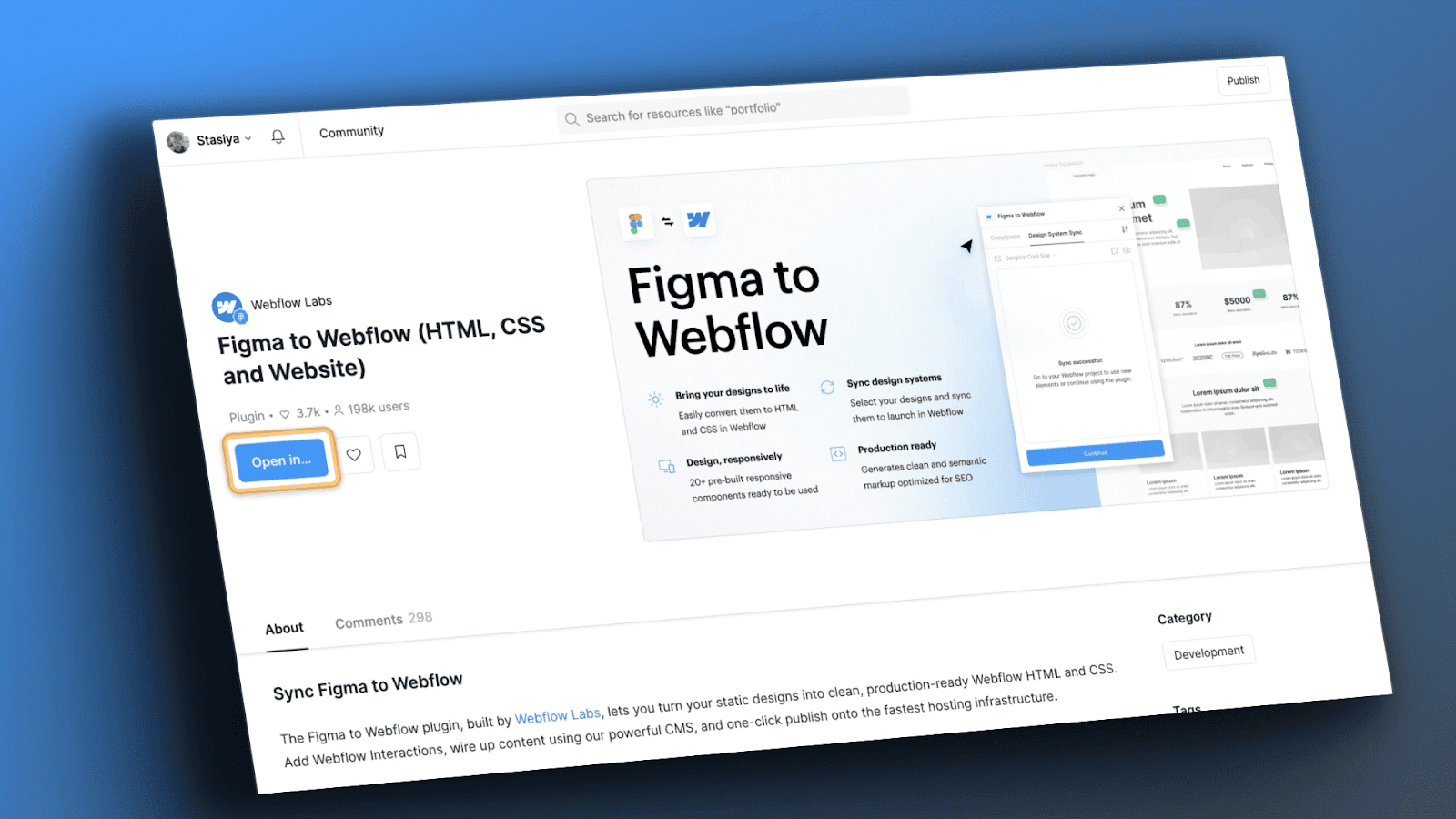
Go to the Figma to Webflow plugin page.
Click "Open in Figma," which will open a new design file and plugin modal window.
Click "Run" in the plugin modal window.
Click "Connect account" to log in with your Webflow credentials and authorize the plugin.
Authorize the Plugin:
Select the sites and Workspaces you want to authorize the plugin for.
Click "Authorize app" on the App authorization page.
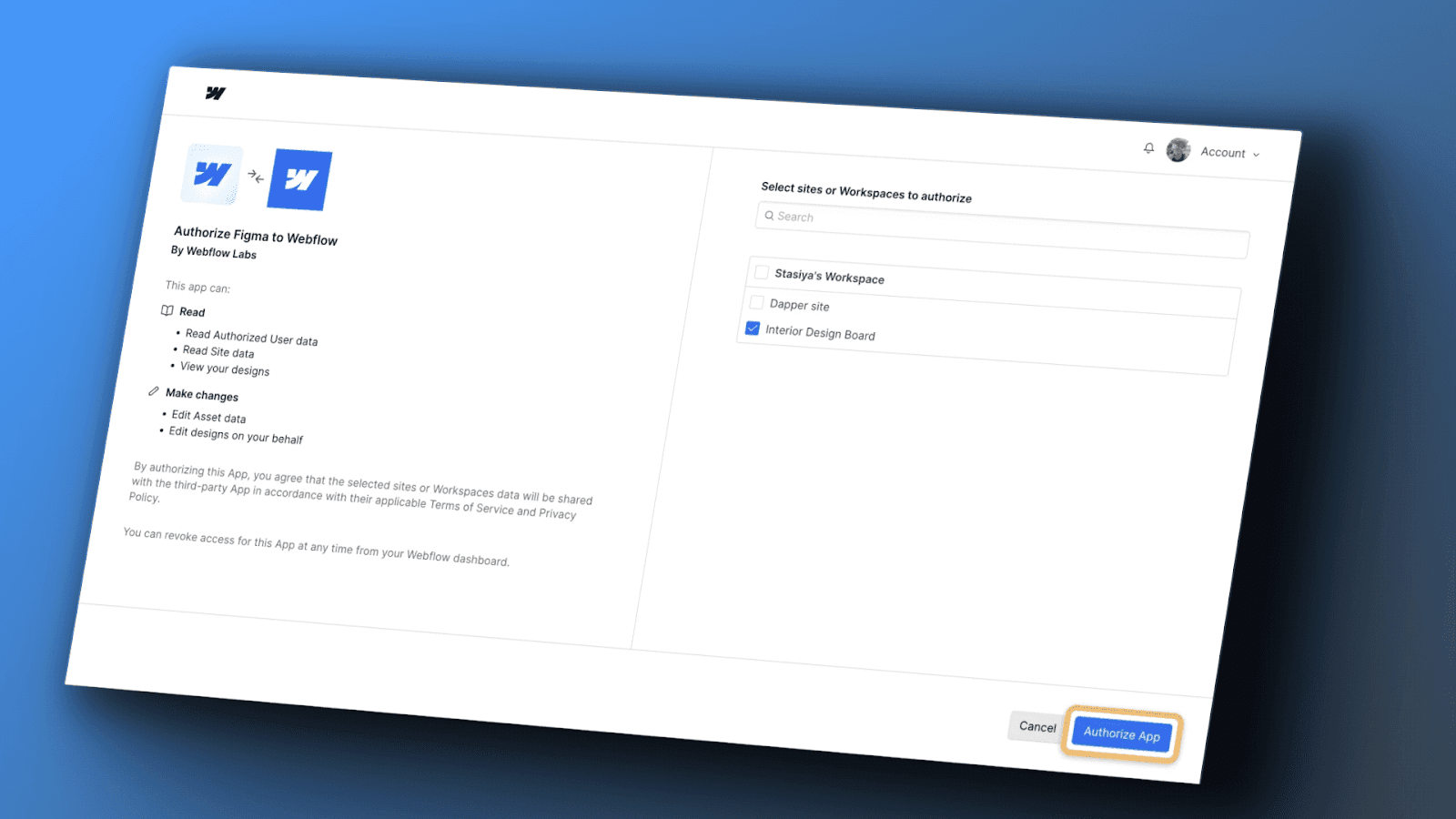
By authorizing the plugin, you grant it access to sync your Figma designs with your Webflow sites.
Using the Figma to Webflow Plugin for Layouts
The Figma to Webflow plugin offers pre-built responsive layouts to kickstart your designs. These include navbars, hero sections, forms, footers, and other common elements.
Steps to Use Layouts:
Open the Plugin: Return to Figma and click "Let's start" on the modal window.
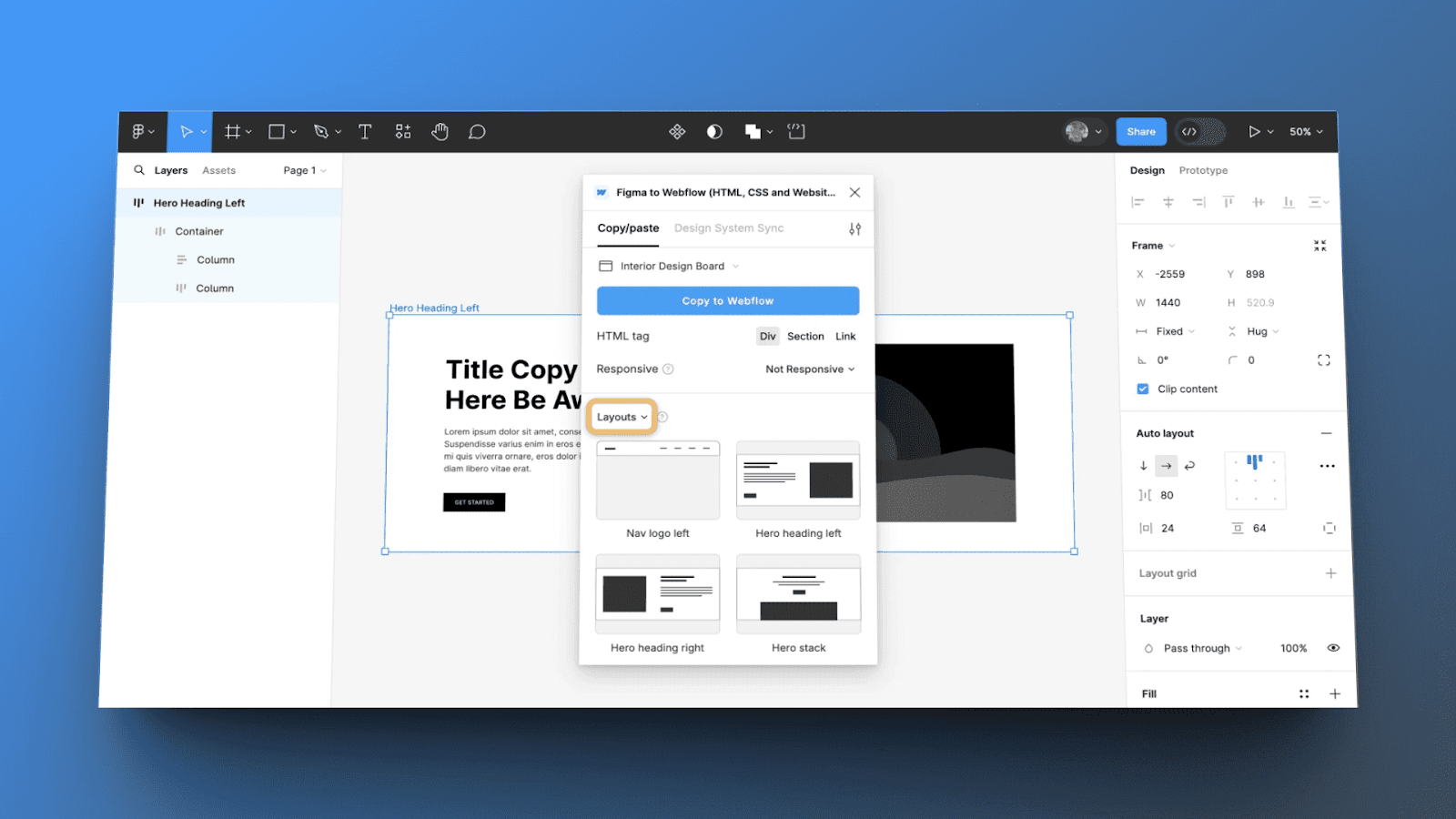
Select Layouts:Go to the Copy/paste tab in the plugin modal window.
Choose "Layouts" from the dropdown.
Select the layout on the Figma canvas.
Choose the Webflow site from the dropdown.
Click "Copy to Webflow" and confirm the copy if prompted.
Open the Webflow Designer and paste the layout onto the canvas.
Using these layouts can save you significant time and ensure your designs are responsive from the start.
Syncing Text and Color Styles
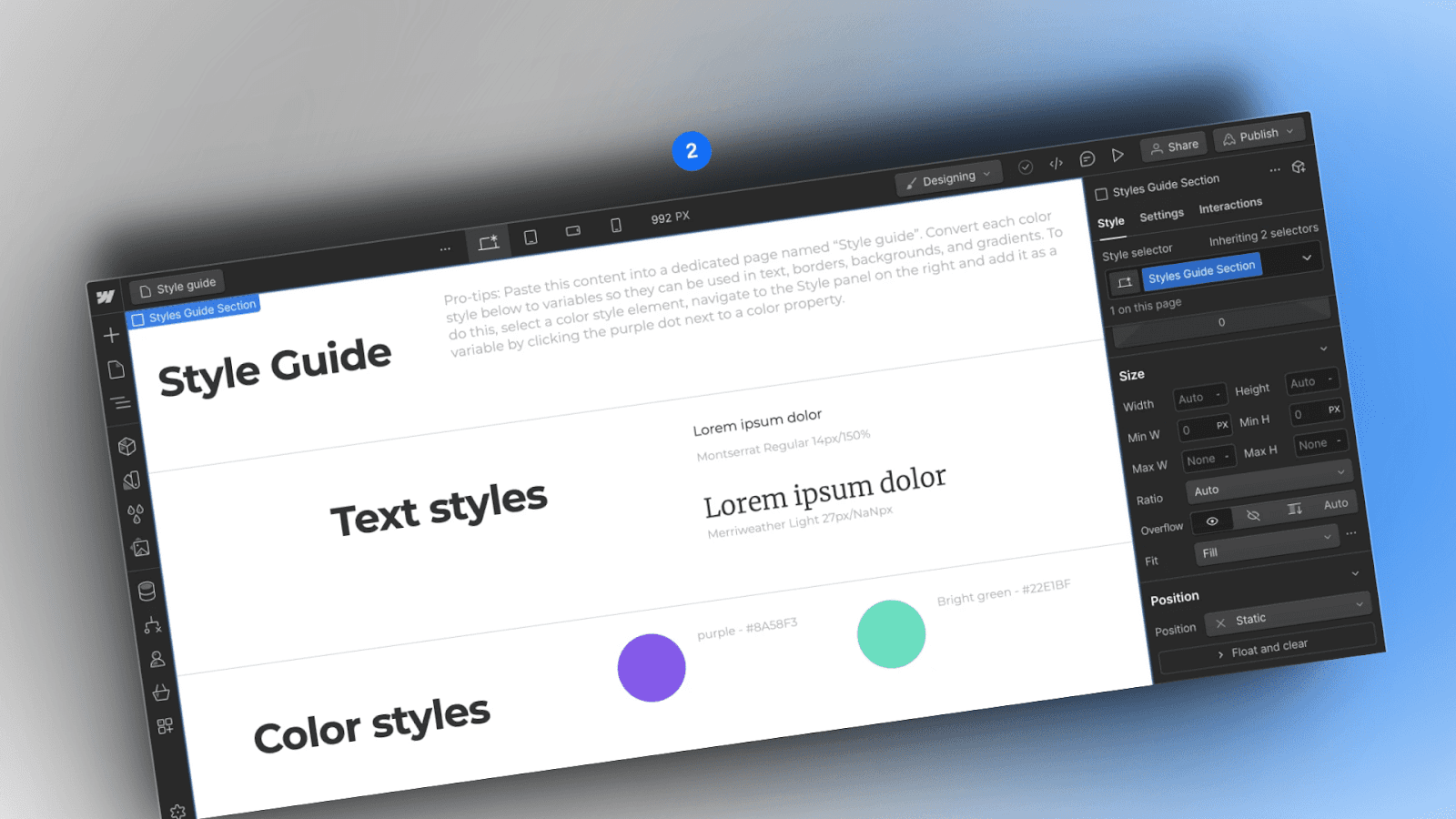
Syncing text and color styles between Figma and Webflow ensures that your design's visual elements remain consistent across platforms.
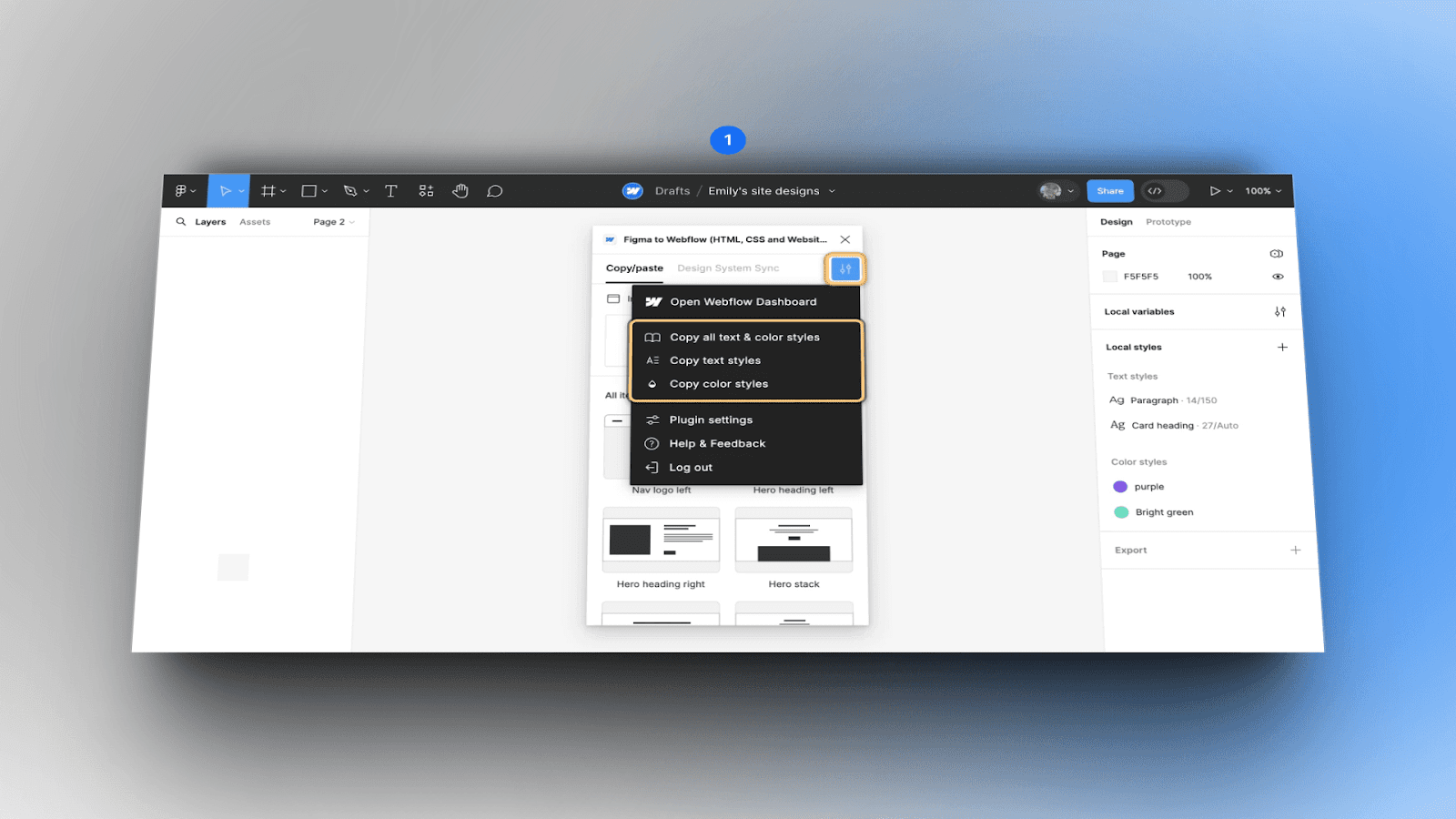
Copying Text Styles:
Click the “hamburger menu” in the plugin modal window.
Select "Copy text styles."
Go to your Style guide page in Webflow.
Press Command + V (on Mac) or Control + V (on Windows) to paste the styles.
Copying Color Styles:
Click the “hamburger menu” in the plugin modal window.
Select "Copy color styles."
Go to your Style guide page in Webflow.
Press Command + V (on Mac) or Control + V (on Windows) to paste the styles.
By syncing these styles, you ensure a cohesive and professional look across your web project.
Handling Custom Fonts and Images
Handling custom fonts and images is crucial for maintaining your design's integrity when transitioning from Figma to Webflow.
Custom Fonts:
Upload custom fonts to your Webflow site before transferring designs.
Ensure that fonts are correctly applied to maintain design consistency.
Images:
Select the design with images in Figma.
Copy to Webflow using the plugin.
Refresh the Webflow Designer to see uploaded images in the Assets panel.
By managing fonts and images correctly, you avoid common pitfalls and ensure your design translates accurately.
Ensuring Responsiveness in Webflow
Ensuring that your designs are responsive is a critical aspect of web development. The Figma to Webflow plugin supports responsive layouts and structures, making it easier to create flexible designs.
Using Responsive Layouts:
Select layers using auto layout in Figma.
Choose responsiveness options in the plugin modal window.
Copy and paste into Webflow, ensuring the design adapts across breakpoints.
Responsive design is essential for providing a consistent user experience across devices.
Advanced Plugin Functionalities
The Figma to Webflow plugin includes several advanced functionalities that enhance its usability and effectiveness.
Auto Layout:
Ensures best translation when copying designs.
Use auto layout in Figma for all layers.
Custom HTML Tags:
Manually define HTML tags for Figma layers to ensure correct implementation.
Classes and Combo Classes:
Convert Figma layer names into Webflow classes.
Manage combo classes for more complex styling needs.
These advanced features provide greater control and flexibility in your design workflow.
Troubleshooting Common Issues
Despite its capabilities, you may encounter issues when using the Figma to Webflow plugin. Here are some common problems and their solutions:
Images Not Showing: Refresh the Webflow Designer to load images correctly.
Fonts Not Transferring: Ensure custom fonts are uploaded to Webflow before copying designs.
Layer Translation Errors: Verify that all layers use auto layout in Figma.
By addressing these issues promptly, you can maintain a smooth and efficient workflow.
Sharing Feedback and Continuous Improvement
Webflow Labs encourages users to share feedback on the Figma to Webflow app plugin. Your insights can help improve the tool and address any shortcomings.
Providing Feedback:
Share your experiences and suggestions on Webflow’s community forums.
Report bugs or issues directly through the plugin interface.
Continuous feedback ensures that the plugin evolves to meet user needs and remains a valuable asset for designers and developers.
What is Design System Sync? {2024 UPDATE}
Design System Sync is a groundbreaking update to the Figma to Webflow plugin, developed by Webflow Labs. This new feature allows for the instant synchronization of design components and variables from Figma directly into Webflow. By streamlining the process of design handoffs and reviews, Design System Sync ensures that any changes made in Figma are immediately reflected in Webflow, maintaining consistency and saving valuable time.
4
Why Use Design System Sync?
Using Design System Sync offers numerous benefits for designers and developers alike. It enhances collaboration, ensures design consistency, and significantly reduces the time spent on manual updates.
Benefits:
Efficiency: Sync design components and variables with a click, eliminating the need for manual updates.
Consistency: Maintain design integrity across platforms with precise synchronization.
Collaboration: Improve teamwork by ensuring all changes are instantly reflected in both Figma and Webflow.
With Design System Sync, you can ensure that your designs are always up-to-date and accurately implemented in Webflow, allowing you to focus on creativity and innovation.
How to Install and Authorize Design System Sync
Getting started with Design System Sync is straightforward. Follow these steps to install and authorize the Figma to Webflow plugin with the new sync feature:
Install the Plugin:
Go to the Figma to Webflow plugin page.
Click "Open in Figma," which will open a new design file and plugin modal window.
Click "Run" in the plugin modal window.
Click "Connect account" to log in with your Webflow credentials and authorize the plugin.
Authorize the Plugin:
Select the sites and Workspaces you want to authorize the plugin to import for.
Click "Authorize app" on the App authorization page.
By authorizing the plugin, you grant it access to sync your Figma designs with your Webflow sites.
Using Design System Sync
Design System Sync simplifies the design-to-development workflow into a seamless process. Here’s how to use it:
Simple Setup:
Install the Figma to Webflow plugin.
Connect your account and open the App from the Webflow Apps panel.
Click to Sync:
Choose your site.
Sync Figma components and figma variables to Webflow with just a few clicks.
Preview your designs within figma app and launch them in Webflow.
Review Changes:
Make any changes in Figma file.
Sync again to review the new preview and the CSS updates for synced components and variables in the App.
This streamlined process ensures that your design components and variables are always in sync, allowing for efficient and effective design updates.
Key Features of Design System Sync
Design System Sync offers several key features that enhance its functionality and usability:
Instant Synchronization: Automatically sync design components and variables from Figma to Webflow, ensuring that all changes are reflected instantly.
Component and Variable Management: Manage design components and variables effectively, ensuring consistency across all design elements.
Real-Time Updates: Make changes in Figma and see them instantly reflected in Webflow, reducing the time spent on manual updates.
Enhanced Collaboration: Improve teamwork by ensuring that all design updates are instantly shared across platforms, enhancing communication and collaboration.
These features make Design System Sync an invaluable tool for designers and developers, streamlining the design-to-development workflow and ensuring design consistency.
Bullet Point Summary
Figma to Webflow Plugin: A tool to streamline design transfers from Figma to Webflow.
Installation: Simple setup involving account creation and plugin authorization.
Pre-built Layouts: Use responsive layouts to kickstart designs.
Text and Color Styles: Sync styles for consistency across platforms.
Custom Fonts and Images: Properly manage fonts and images to maintain design integrity.
Responsiveness: Ensure designs adapt across different devices and breakpoints.
Advanced Functionalities: Utilize auto layout, custom HTML tags, and class management.
Troubleshooting: Address common issues like image loading and font transfers.
Feedback: Share your experiences to help improve the plugin.
The Figma to Webflow plugin is a powerful tool that enhances the collaboration between design and development. By following this guide, you can maximize its potential and streamline your workflow, ensuring your designs are effectively translated from Figma to Webflow.
Want it done for you? I offer website design on a fixed price, from $700. See pricing.